FreePro
Pricing · Digital
Dynamic Discount Rules
Percentage and fixed discounts that grow with the order.
View product→Pricing · Free plugin
Add extra fees to the order summary at checkout.
Why Extra Fees Lite
Add extra fees to the order summary at checkout.
Add handling, packaging or service fees to the order summary. Fees show on their own line, so customers always know what they pay for.
Get this plugin
Feature tour
Creating Fees
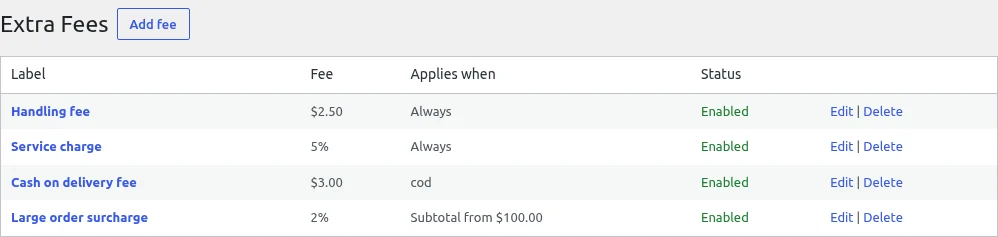
The Extra Fees screen lists your rules in a table with the columns Label , Fee , Applies when , Status and an actions column. When there are no rules yet it shows No fees yet. Click "Add fee" to create one.
Creating Fees
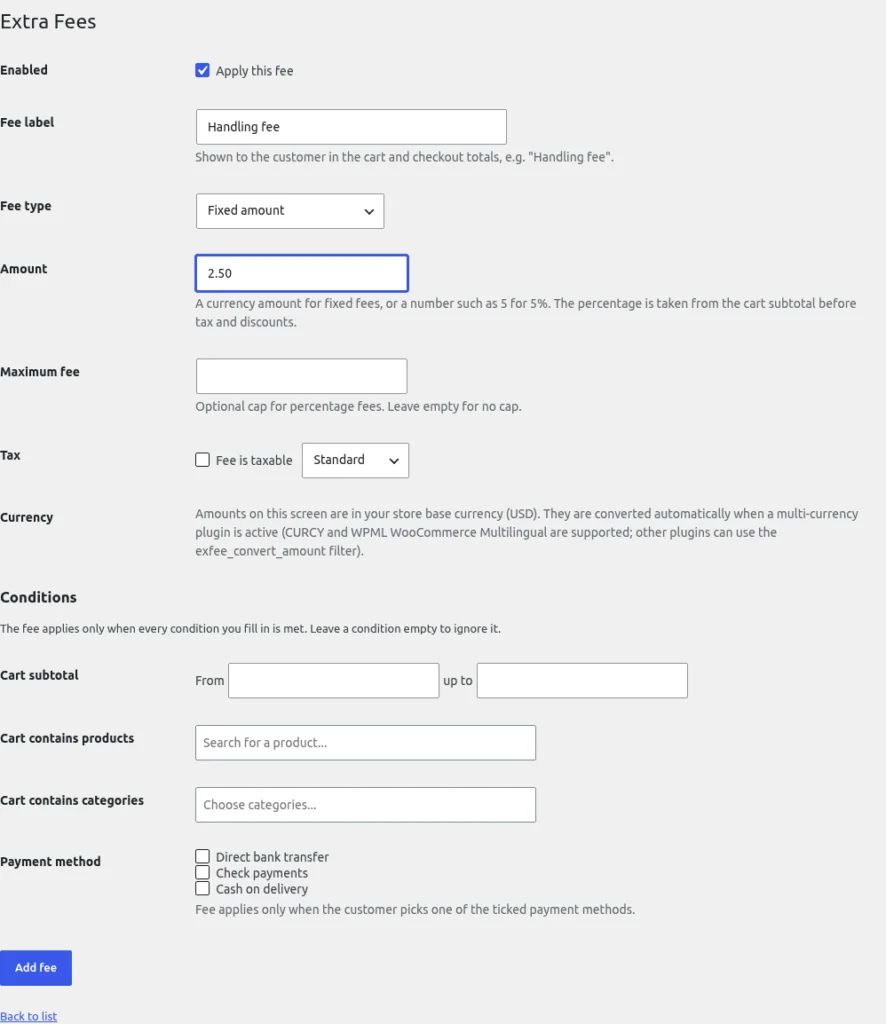
Click Add fee (or Edit on an existing rule). Fill in the fields below, then click Add fee / Update fee . Back to list leaves without saving.
Creating Fees
The amount you typed is added as the fee.
Creating Fees
The Tax row controls how WooCommerce treats the fee:
Creating Fees
Under Conditions the fee applies only when every condition you fill in is met . Leave a condition empty to ignore it. A rule with no conditions applies to every cart.
How Fees Appear
Matching fees are added to the WooCommerce cart using the standard fee mechanism (the woocommerce_cart_calculate_fees hook). The label you entered is shown in the cart and checkout totals, and the fees are saved as fee lines on the order .
Get started in just 3 simple steps.
Install the plugin from WordPress.org and activate it.
Open the plugin settings and choose the options that fit your store.
Add extra fees to the order summary at checkout.
Not yet. This Lite edition is free.
Search for the plugin in Plugins → Add New in your WordPress dashboard, or download it from WordPress.org.
Add extra fees to the order summary at checkout.
Enter your email and phone number. We will email you the plugin ZIP right away.