Free
Pricing · Free & Pro editions
Dynamic Discount Rules
Percentage and fixed discounts that grow with the order.
- WordPress plugin
- WooCommerce compatible
- 6Features
- Free & ProEditions
- 14Screenshots
- Free editionOn WordPress.org
- Secure checkoutSafe & simple
- Regular updates& compatibility
- Docs & supportGuides and help
Why Dynamic Discount Rules
Why use this plugin?
Percentage and fixed discounts that grow with the order.
Create discounts that respond to the cart. The free edition covers percentage and fixed discounts; Pro adds conditions on cart total, user role, category and quantity.
- Percentage discountFree
- Fixed amount discountFree
- Rules by cart totalPro
- Rules by user rolePro
- Rules by categoryPro
- Rules by quantityPro
Choose your edition
Free
Get started at no cost$0Forever · WordPress.org
- Percentage discount
- Fixed amount discount
Most popular
Pro
Unlock everythingPricing soonPro edition
- Everything in Free, plus
- Rules by cart total
- Rules by user role
- Rules by category
- Rules by quantity
Feature tour
Every screen, explained
Installation & Setup
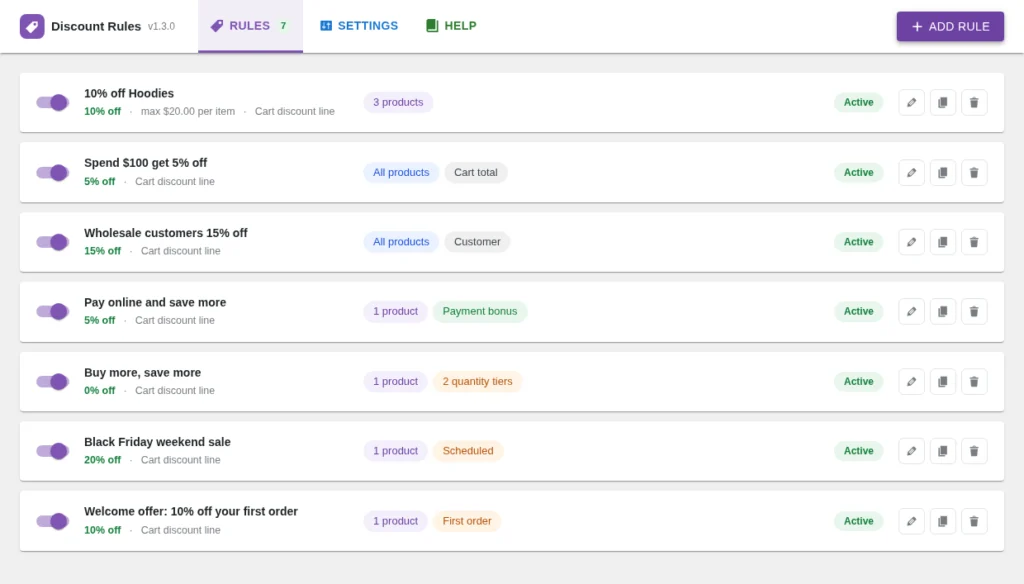
The Discount Rules screen
Go to WooCommerce > Discount Rules . The top bar has three tabs:
- The summary shows the discount (for example 10% off ), the maximum per item if you set one, Item price or Cart discount line ,…
- Badges show what the rule targets: All products , a count of categories or products, Has exclusions , Cart total , user roles,…
- A red badge No category chosen or No product chosen warns you that the rule targets categories or products but none are selected,…
- With Pro, extra badges appear: quantity tiers , Scheduled and First order .
Creating Rules
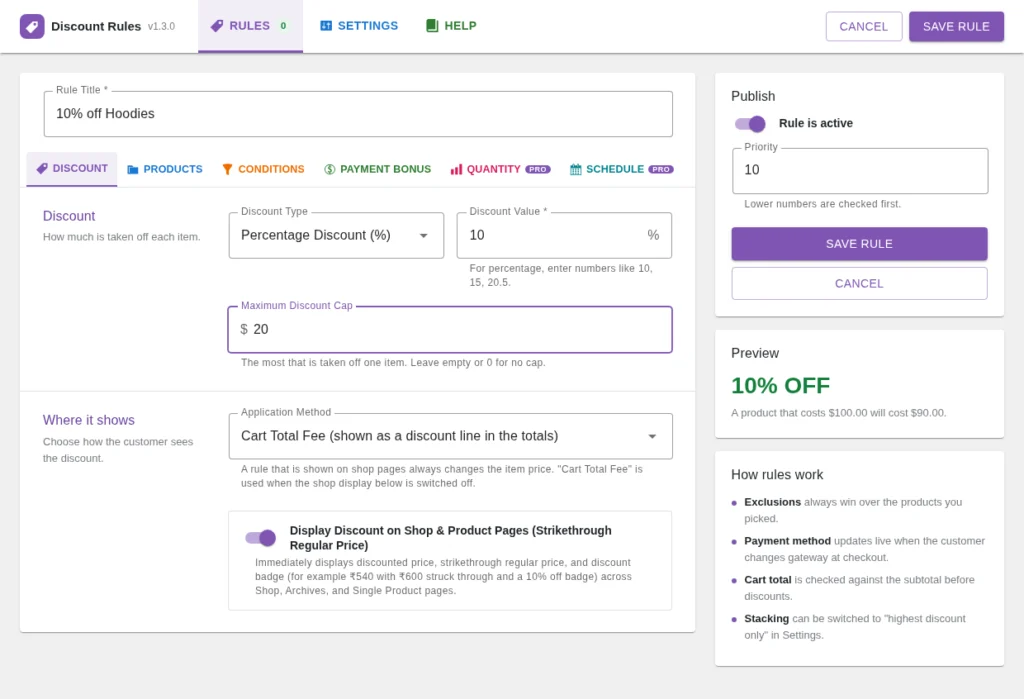
Create your first rule
A Preview box in the form shows an example price once you enter a value, and a How rules work box repeats the main behaviour.
- Go to WooCommerce > Discount Rules and click Add rule .
- Type a Rule Title (required). It is shown in the cart and checkout totals when the rule is taken off as a discount line.
- On the Discount tab choose a Discount Type and enter a Discount Value , for example 10 for 10%.
- On the Products tab choose what the rule applies to.
Creating Rules
Choose which products get the discount
Exclude Categories and Exclude Specific Products are never discounted, even if they match the settings above. Exclusions always win over inclusions. Use them to protect clearance or sale items.
- Include Categories : pick one or more. A product in a sub-category also matches a rule set on its parent category.
- Include Specific Products : type 2 or more characters to search by title or SKU.
- If you choose a scope but select nothing, the rule matches no product. The rules list flags this in red.
- For variable products, you can choose the parent product or a single variation.
Creating Rules
Conditions: cart total, user role, payment method
These fields are on the Conditions tab. A rule only applies when all of its conditions are met. An empty condition means no restriction.
- Minimum Cart Subtotal : the subtotal must be at least this amount.
- Maximum Cart Subtotal : the subtotal must not be more than this amount.
Creating Rules
Online payment bonus
The Payment bonus tab gives an extra discount when the customer pays with certain gateways, for example online payment. It is added on top of the base discount of the same rule.
- If you select gateways, only those get the bonus.
- If you select none, every gateway except Cash on delivery ( cod ), Direct bank transfer ( bacs ) and Cheque ( cheque ) gets it.
How Discounts Work
Global settings
Open WooCommerce > Discount Rules > Settings , change what you need and click Save Settings .
How Discounts Work
Shop pages, cart, checkout and orders
When Display Discount on Shop & Product Pages is on (both the global setting and the rule's own checkbox), eligible products show the lower price first, then the regular price struck out, then a badge such as (10% off) .
- Item price rules show the lower price, the struck-out regular price and the badge in the cart table.
- Discount lines and payment bonuses appear in the cart totals.
- The green savings banner shows the saved amount (item discounts plus discount lines) above the cart and the checkout form.
Pro FeaturesPro
Quantity discounts
These options are on the Quantity tab of the rule form and need the Pro add-on.
- On the Quantity tab, tick Use quantity tiers .
- In the Tiers table, fill From quantity and Discount per item . Click + Add tier for more rows, and Remove to delete a row.
- Choose Count the quantity .
- Save the rule.
Pro FeaturesPro
Schedule a rule
On the Schedule tab you can limit when a rule is used. All times use the store time set in WordPress. You can combine all options; they must all match.
Pro FeaturesPro
First order discount
On the Schedule tab, under Customer , tick First order only .
- The rule applies only to logged-in customers who have no paid order yet .
- Guests do not get the discount. This also encourages customers to create an account.
- A First order badge marks these rules in the list.
How it works
Get started in just 3 simple steps.
- 1. Install & activate
Install the free plugin from WordPress.org, or upload the ZIP you receive after buying Pro.
- 2. Configure
Open the plugin settings and choose the options that fit your store.
- 3. You're done!
Percentage and fixed discounts that grow with the order.
Frequently asked questions
Can rules stack?
You choose the priority of each rule, so you control whether discounts stack or the best one wins.
How do I get my plugin?
Free editions install from WordPress.org. Pro editions are bought on Freemius, and you receive the ZIP and licence key right after checkout.
Get Dynamic Discount Rules today!
Percentage and fixed discounts that grow with the order.
Get Dynamic Discount Rules free
Enter your email and phone number. We will email you the plugin ZIP right away.